Most businesses with commercial surveillance cameras assume that if you pick the right cameras, cover the right angles, and make sure everything records, you’re protected. What they don’t always plan for is what happens after something goes wrong, when you need to find one specific moment buried somewhere inside days’ worth of footage.
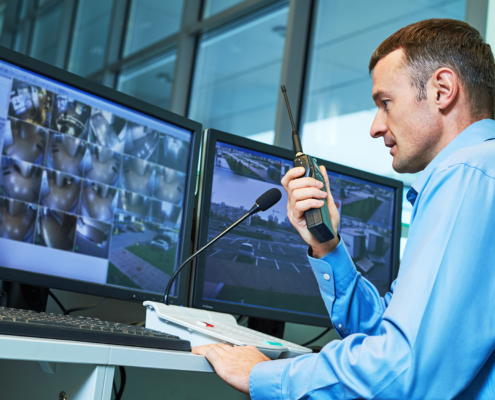
Reviewing security footage the old-fashioned way means assigning someone to watch hours of video, fast-forwarding and hoping they don’t blink at the wrong moment. It’s slow, it’s unreliable, and for most businesses, it’s simply not practical. AI changes the equation entirely.
How AI-Powered Forensic Video Search Actually Works
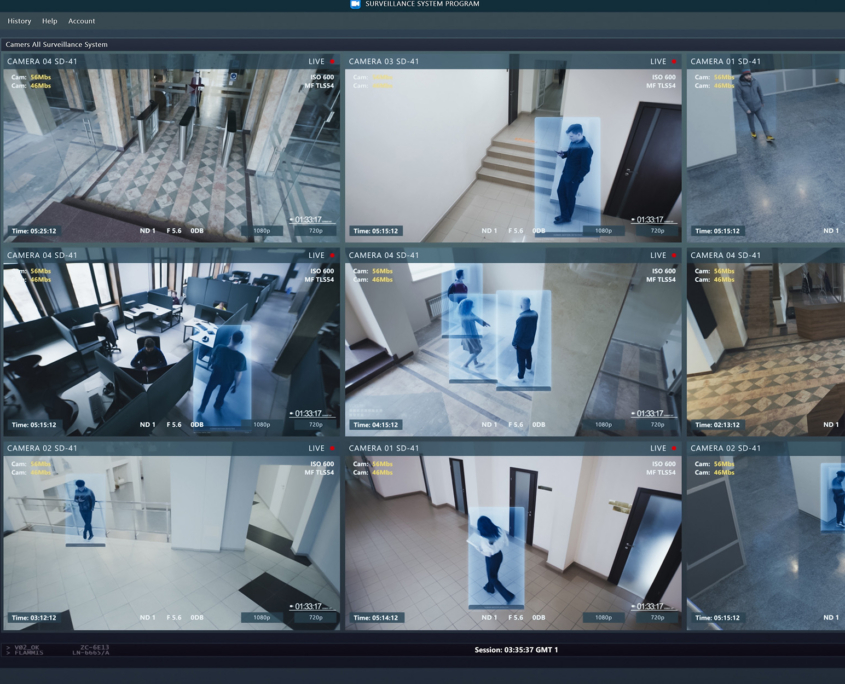
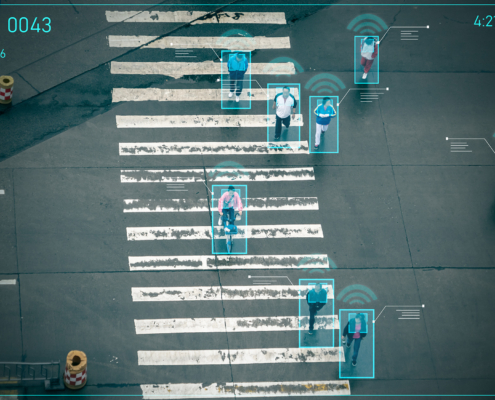
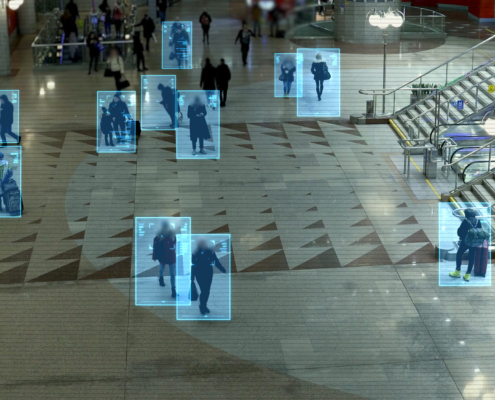
Modern commercial surveillance cameras equipped with AI are constantly analyzing their feeds, tagging objects, classifying movement, and building a searchable index of everything that passes through the frame. When you need to find something specific, you’re not rewinding tape. Instead, AI gives you the power to run a query. That foundation is what makes forensic video search possible, and it’s what separates AI-equipped systems from standard CCTV setups.
Natural Language Search
The most intuitive way to search AI-indexed footage is through plain language. Instead of scrubbing through a timeline, a user can type something like “man in red jacket near the back entrance” and the system surfaces only the clips that match. This works because AI models are trained to recognize and tag attributes as they appear on camera.
The result is that how to review security camera footage stops being a manual task and becomes something closer to a web search, one that anyone on your team can run without technical training.
Attribute-Based Search
Natural language is just one entry point. AI video search systems also allow users to search by specific attributes directly, like clothing color, vehicle make, license plate, or whether a person was carrying an object. This is especially useful when you have a partial description rather than a full one.
If a manager knows a vehicle involved in an incident was a dark-colored pickup truck, they can filter by vehicle type and color across every camera on the property simultaneously, rather than pulling footage from each camera one at a time and reviewing it separately.
Timestamp and Zone Filtering
Not every search starts with a description. Sometimes you know roughly when something happened but not exactly, or you need to isolate activity in a specific area of your property. AI systems allow users to filter by time window and camera zone, narrowing the field before applying any other search criteria.
A search that might otherwise require reviewing six hours of footage across twelve cameras can be narrowed to a handful of relevant clips in seconds. Combined with attribute filtering, this layered approach is what makes the tool genuinely fast rather than just marginally faster.
Searching Your Footage Step by Step
The following walkthrough reflects how a typical AI for camera security footage search works on most modern platforms, though interfaces vary by system.
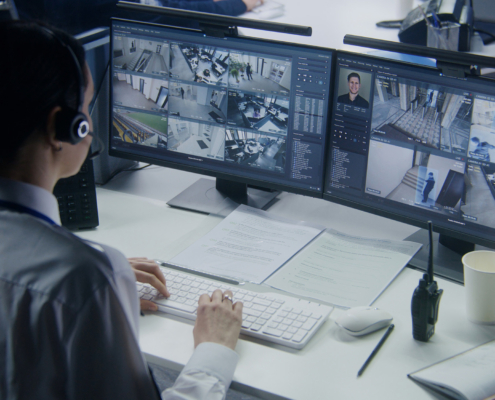
- Access your surveillance dashboard. Most AI-equipped commercial surveillance cameras are managed through a cloud-based or on-premise platform with a search interface built in. Log in and navigate to the search or investigation tool.
- Define your time window. Start by narrowing the timeframe. If you know an incident occurred between 10 p.m. and midnight, set those parameters first. This alone can cut the volume of footage the system needs to scan by a significant margin.
- Select your cameras or zones. Choose the specific cameras or areas of your property that are relevant. Searching all cameras is an option, but narrowing by zone speeds up results and reduces noise.
- Enter your search criteria. This is where you input your description. The more specific you can be, the tighter the results. Vague terms return more clips, while precise terms return fewer, more relevant ones.
- Review the returned clips. The system presents only the footage that matches your criteria, typically as a thumbnail grid or short clip list. From here, you can preview, filter further, export, or flag specific clips for documentation.
- Export and preserve what you need. For incident investigation purposes, most platforms allow you to export clips directly, along with metadata like timestamp, camera ID, and location details that matter for insurance claims, law enforcement handoffs, or internal records.